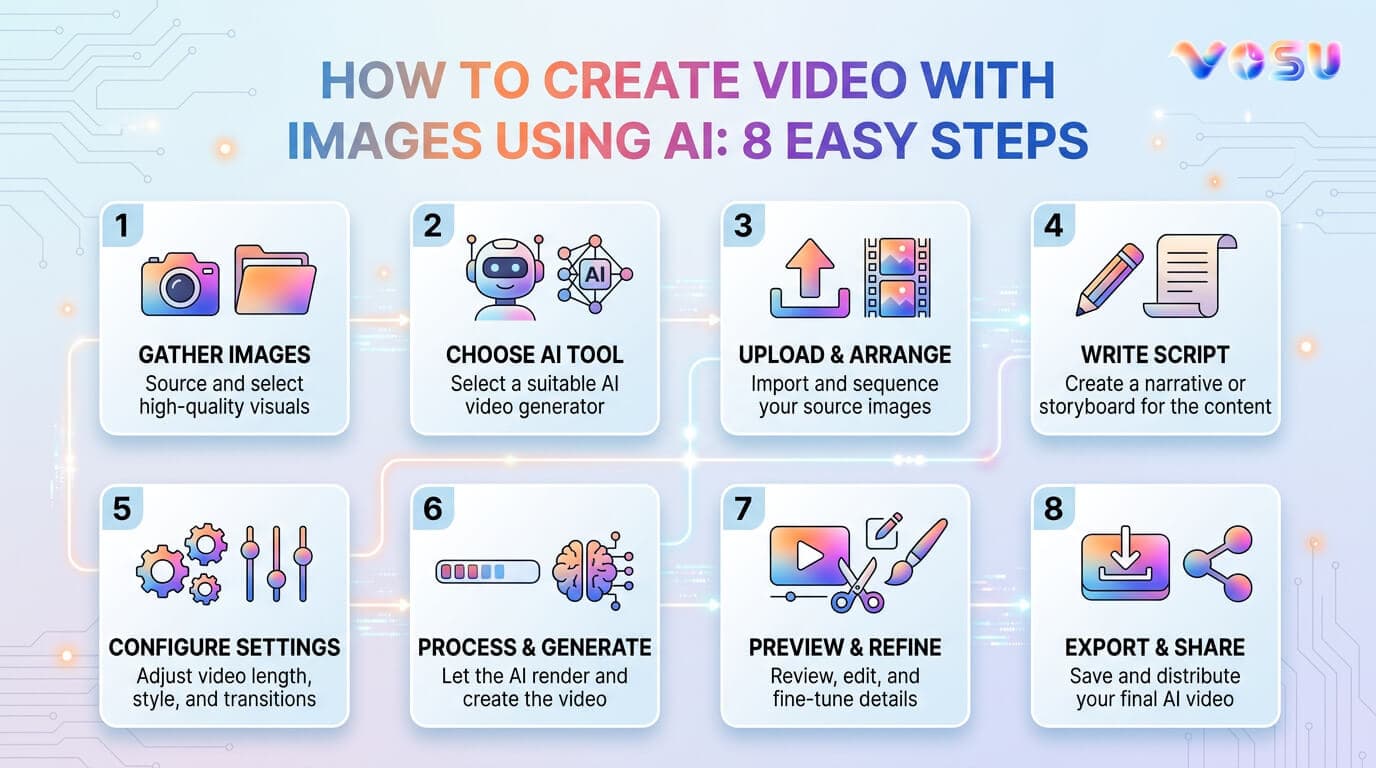
You can use AI to turn photos into videos in 8 simple steps. First, set your goal, clarify the purpose of your video, marketing, business, or personal use. Then choose high resolution images with consistent lighting, color and aspect ratio. Select an AI model based on your needs for quality, camera movement and audio features. Upload your images in supported formats like JPG or PNG and use structured prompts to guide the AI’s visual output. Add music or a voiceover that matches the tone and pacing of your visuals and preview the video to check transitions, effects and alignment with your message. Finally, export and share your video in MP4 or MOV format, optimized for your target platform.
To streamline the entire process, choose Vosu AI, which offers multiple AI models, built in tools and automation features that save time and reduce effort. Vosu AI also includes advanced capabilities like text to video, image to video and consistent character support. Its simple interface and cost effective plans make it ideal for anyone who wants to turn photos into engaging videos without switching between tools.
8 steps to create a video with images using AI are listed below.
- Plan your goal
- Select high quality images
- Choose the right AI model
- Upload images
- Add prompts and effects
- Add music or voiceover
- Preview and edit
- Export and share
1. Plan your goal
AI guides you through a clear process to create a video using images and helps you define the purpose of the video, for business, marketing, or personal storytelling. Then, decide the message you want to share and what response you expect from the audience. Next, select the video length and screen size that match the platform you plan to use and choose a video style that fits your message. This process sets a clear goal and guides every step during video creation.
2. Select high quality images
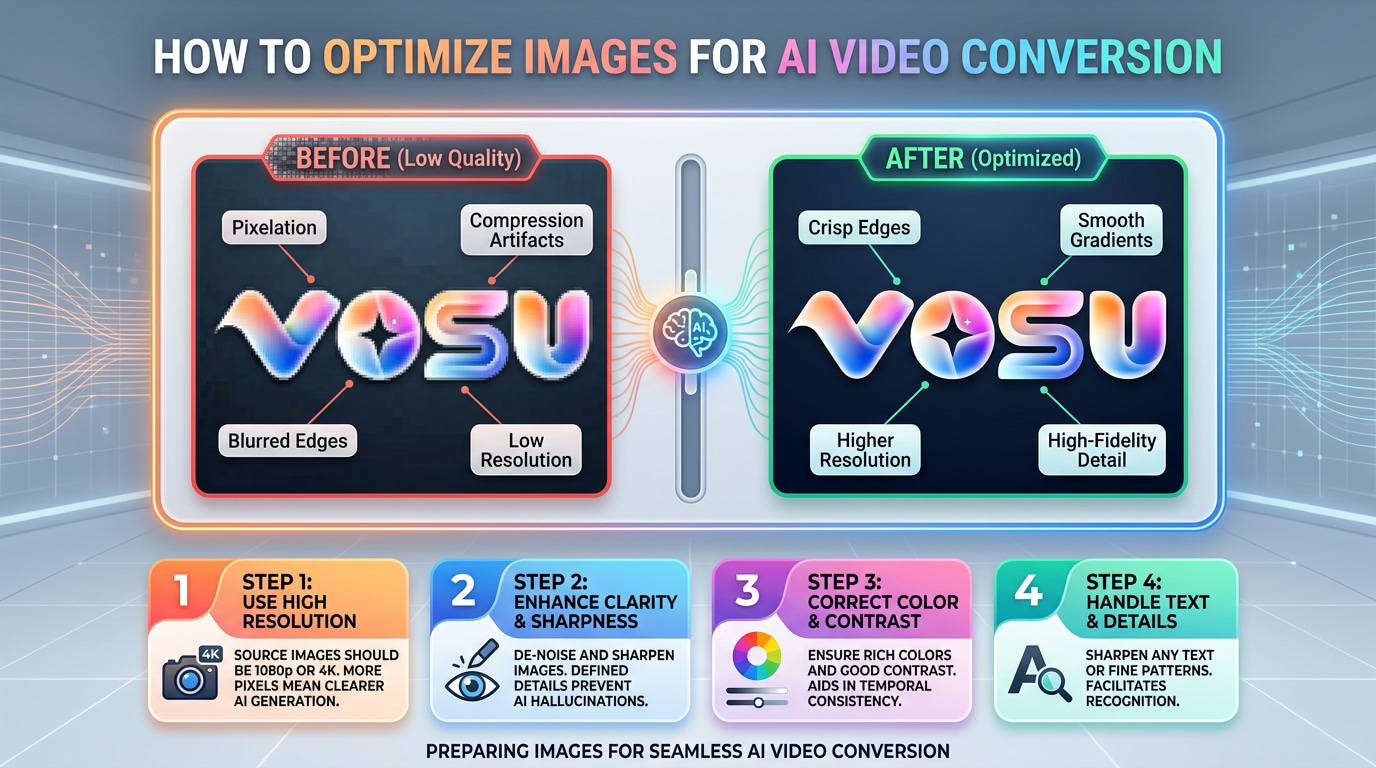
To select high quality images for AI video creation, choose photos with high resolution (at least 1080p). Use optimized file formats such as JPEG, PNG, or WebP and make sure the colors and lighting remain consistent to create smooth transitions between frames. Check each image for sharpness, clarity and no blurriness. Ensure all images share a similar aspect ratio and maintain visual consistency and a cohesive look throughout the video. High quality images matter because they improve the video’s clarity, professionalism and ability to stand out. Low quality or mismatched images cause pixelation, distracting transitions and reduce viewer engagement.
The image below shows how to select high quality images for AI video creation.
3. Choose the right AI model
To choose the right AI model for video creation with images, first identify the features you need such as high quality output, camera motion, or audio support. Popular models like Veo 3.1, Runway Gen-4, PixVerse V5 and Kling 2.5 Turbo are designed to turn your images into smooth, dynamic video sequences with minimal setup. Make sure your chosen model transforms images into complete videos and fits your workflow requirements. Focus on key factors like output quality, ease of use, cost and available creative controls or customization tools. The right AI model improves your workflow, enhances the look and feel of your video and helps you deliver your message without additional costs or technical issues.
4. Upload images
To create a video with AI, open the AI platform and use the upload option to select images from your device or media library. Choose supported file formats such as JPG or PNG to avoid compatibility issues. Check that each image meets high resolution standards, with a minimum of 1080p. Confirm the images show sharp detail and clear focus. Adjust the number of images to your planned video length. Use photos that share the same aspect ratio and visual style to maintain a smooth and consistent look. When you upload the images, the AI generates a high quality video without quality issues.
5. Add prompts and effects
Add clear prompts to guide the AI when you create a video from images. Use them to specify motion, camera direction, lighting and style. Follow a precise formula: subject + action + scene + (camera angle + lighting + style). For example, write: A girl walks through a forest, camera moves forward, under golden sunlight with a cinematic look, avoiding casual or conversational words. Describe exactly what the subject does, where the scene takes place, how the camera moves and what atmosphere you want. Strong prompts allow the AI to create smooth, accurate and professional video results.
6. Add music or voiceover
To add music or voiceover with AI, open the platform’s audio tools and select one of three options: upload your own file, choose from the built in library, or enter a text prompt to generate AI audio. When you write a prompt, define the mood, genre, tone and pace. Focus on emotional match and clarity, select music that fits each scene and supports smooth transitions. Use voiceovers that deliver the message with a natural and human like tone. AI music adds emotional depth, strengthens viewer connection and helps your video stand out. If you need ideas, the platform provides prompt templates and suggestions to guide your choice.
7. Preview and edit
Use the preview option to view your video before export and check the image quality, camera motion, timing, transitions and how the AI follows your prompts. Make sure the video matches your goal and keeps a consistent style. If something looks off, adjust prompts, images, camera directions, audio and scene details to match your target platform. Previewing helps you find errors, improve the flow and make sure the final video reflects your vision. Since AI follows each prompt step by step, previewing lets you control the result and fine tune the video for a clean and professional finish.
8. Export and share
To export and share a video that is generated by AI, use the platform’s export function to save your project in a widely supported format such as MP4 or MOV and select the appropriate resolution (e.g., 1080p or 4K) based on your intended use or sharing platform. Most AI video tools offer options that optimize your video for different platforms and ensure compatibility and the best viewing experience.
Key Considerations when exporting and sharing
- File format: Choose a format supported by your target platforms, with MP4 as the most widely compatible option across devices and websites.
- Resolution: Select a resolution that fits your distribution needs, as higher resolutions provide better image quality but also increase file size, which may affect loading times and storage limits.
- Optimization: Use the tool’s optimization settings to match your video with specific platforms; for example, set the correct aspect ratio for Instagram, YouTube, or TikTok to maintain visual consistency and platform compliance.
- Copyright and licensing: Ensure that all images, music and assets used in your video come with proper licensing and commercial rights to avoid legal issues, especially when you share the content publicly or use it for business purposes.
- Watermarks and branding: Check whether your export includes any watermarks or branding from the AI tool and upgrade to a paid plan if you need a clean and professional looking result.
- Sharing options: After you export the video, download it to your device, share it through a direct link, or upload it directly to social media or video platforms using the built in sharing tools provided by the software.
Why should you choose VOSU AI to create videos?
Vosu AI is a simple, all in one tool that helps you turn images or photos into high quality videos using advanced AI, which saves you time, effort and money.
8 reasons to choose Vosu AI to create videos are explained below.
- One stop platform: Vosu AI serves as a one stop platform. It combines multiple leading AI video generation models and lets users create, edit and enhance videos in a single workspace without switching between tools.
- Multiple AI models: Vosu AI gives access to multiple AI models and includes advanced features such as AI avatars, voice cloning and text to anime, which give users the flexibility to create diverse and highly customized video content.
- Cost savings: Vosu AI helps users save money through transparent pricing, cost saving credit systems and lifetime deals. It delivers professional quality videos quickly and at a lower cost than traditional production methods.
- Automating video production: Vosu AI automates the entire video production workflow. It handles everything from prompt to final output, reduces manual steps and speeds up the process of creating complete, polished videos.
- Ease of use: Vosu AI simplifies the video creation process through an intuitive interface that enables users to generate, edit and finalize videos quickly, even if they do not have any technical or editing experience.
- Diverse feature set: Vosu AI includes a diverse set of features such as text to video, image to video, audio generation and adjustable aspect ratios.
- Image to video generation: Vosu AI transforms static images or photos into dynamic video sequences, which opens up new possibilities for marketing campaigns, digital storytelling and social media engagement.
- Video from photos: Vosu AI converts photo collections into smooth, engaging video presentations, which works well for personal memories, business showcases and promotional content.
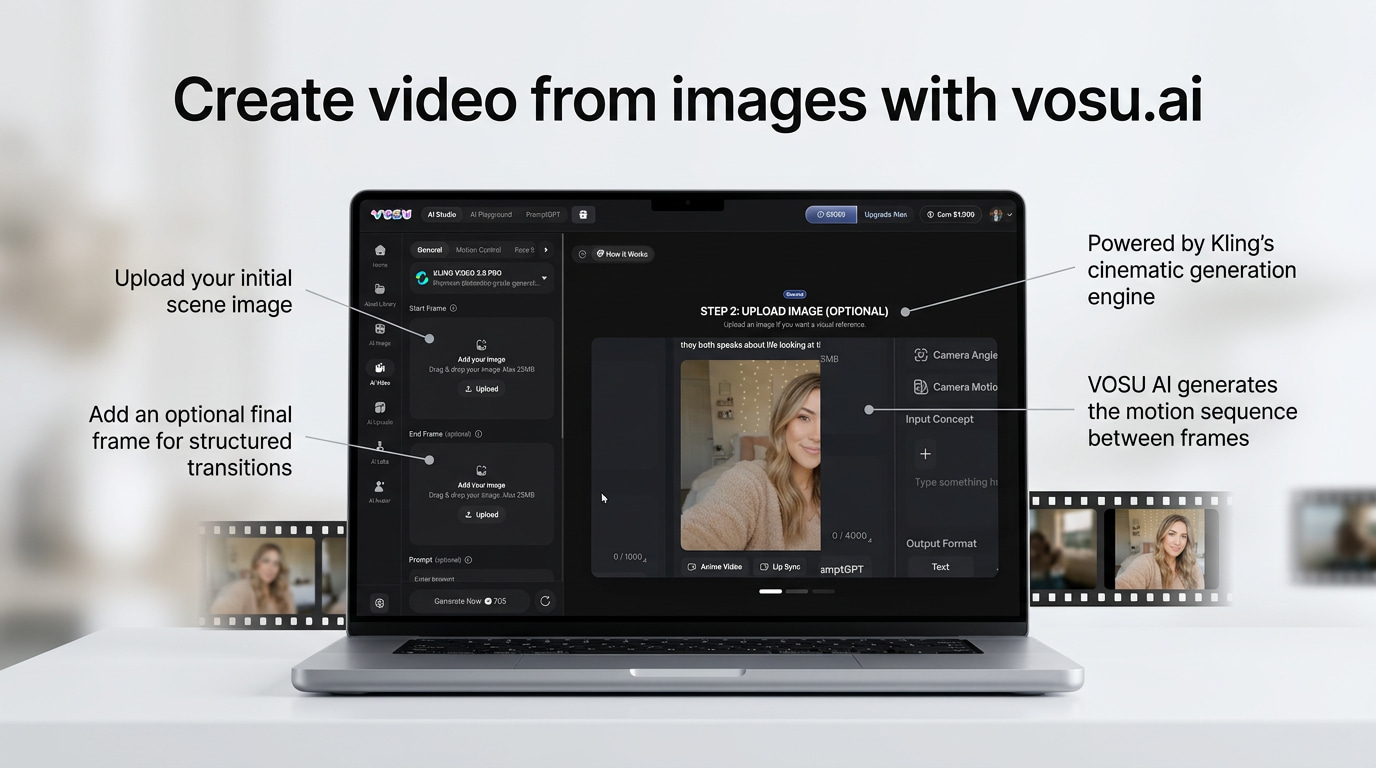
The image below shows the key reasons to choose Vosu AI for creating videos.
Can VOSU AI create videos from text?
Yes, Vosu AI can create videos from text because it features advanced text to video generation technology. It allows users to input text prompts, Vosu AI analyzes the prompt and automatically transforms it into professional videos with suitable visuals and animations. Vosu AI simplifies the video creation process and enables users to quickly produce engaging, polished videos directly from their written ideas or scripts.
What does VOSU AI consistent character feature offer?
Vosu AI consistent character feature allows users to create AI powered characters that maintain a uniform appearance and identity throughout an entire video. Vosu AI users upload a reference image to ensure the character’s facial features, hairstyle and clothing remain consistent across frames, even when the pose, background, or animation changes. This feature supports smooth storytelling and branding by providing reliable character continuity. It lets creators produce professional quality videos where the character’s visual traits remain stable.
What are the best AI models provided by VOSU AI to create video?
5 best AI models provided by Vosu AI to create videos are explained below.
- Kling AI: Kling AI generates high quality, cinematic videos from text prompts or images. It creates dynamic scenes and smooth animations that support creative and professional content creation.
- Runway: Runway provides advanced video generation tools. Users turn ideas, text, or images into visually engaging videos with strong support for creative storytelling and flexible editing.
- Veo 3.1: Veo 3.1 by Google produces high quality cinematic videos from text or images that support customizable motion, photorealism and fast composition for storytelling and visual campaigns.
- Sora 2: Sora 2 from OpenAI excels at generating hyper realistic videos via text to video technology with advanced scene expansion and native audio integration for professional content.
- Minimax: Minimax specializes in efficient image to video and text to video generation, which offers quick rendering, responsiveness to complex prompts and reliable physics simulation for short, high quality clips.