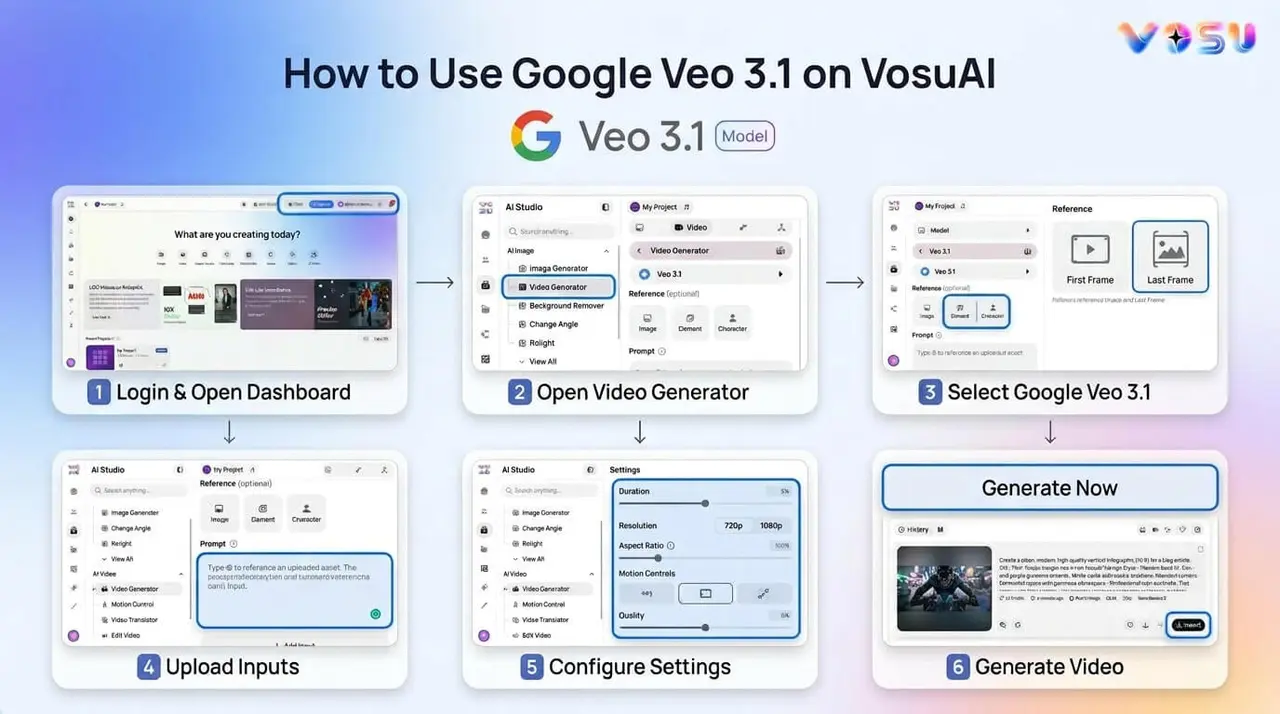
Generate unlimited videos with Google Veo 3.1 by using VosuAI. Access VosuAI using email, Google or Apple accounts. Activate your account with a subscription plan such as the starter plan for $10 monthly, the creator plan for $29 monthly or the enterprise with custom pricing. Open AI Studio after logging in, click video generator, select the Veo 3.1 first and last frame model. Upload starting and ending images, enter a prompt describing the desired scene, motion and style. Refine your prompt quality with the prompt enhancer.
Users can also use PromptGPT to create the prompt visually based on the model by adjusting settings such as visual style, camera angle, camera motion, camera setup and reference ideas. Customize your video by choosing the aspect ratio, video resolution, audio generation and output variations. Click generate now to create videos and share across social media, ads or content platforms.
6 steps to generate unlimited videos with Google Veo 3.1 are listed below.
1. Register or log in to VosuAI
2. Go to the video generator
3. Select Veo 3.1 model (first and last frame)
4. Provide the inputs
5. Adjust the settings
6. Click generate now and use
1. Register or log in to VosuAI
Visit VosuAI to generate unlimited videos with Google Veo 3.1. Click the sign up or log in button on the homepage. Complete your registration through an email and password, an existing Google account or an Apple account. VosuAI provides every new user a limited number of free credits upon registration to test video generation before choosing a paid plan.
Purchase an available subscription plan such as Starter, Creator or Enterprise based on your needs. VosuAI offers a starter plan at $10 monthly, a creator plan at $29 monthly and an enterprise plan with customized pricing and unlimited video generation. It strictly protects every user's privacy, so your data stays secure from the moment you sign in.
2. Go to the video generator
Go to the home page of VosuAI after purchasing your desired plan. Find the AI Studio in the left hand navigation bar, where all creation tools are organized in one place. Select the video generator from the AI Studio menu to open the video generation workspace directly, where Google Veo 3.1 is ready for your first prompt.
3. Select Veo 3.1 model (first and last frame)
Click the dropdown menu in VosuAI to open the list of available video generation models. Look at the right side panel, where all tools are displayed. Select the Veo 3.1 (first and last frame) model from the list. This sets the system to use both starting and ending frame control for video generation, which allows you to create multiple outputs by changing selections as needed.
4. Provide the inputs
Upload your start and end frames to generate the complete video sequence between them. Write a detailed prompt describing the scene, motion or style. Use prompt enhancer to improve prompt quality, style consistency and frame details automatically. Users can also use VosuAI’s PromptGPT to write a detailed video prompt to generate the video without any technical skills. Open and switch to prompt engine video mode, select the Veo 3.1 First Last Frame model, and then visually customize the settings such as visual style, camera angle, camera motion and camera setup.
Users can enter a reference idea in the input concept box by describing the subject, action and environment within 1500 characters. Choose an output format like text, JSON or markdown and select the output numbers such as 1,2,3 or 4 to compare prompt variations. Click generate to create a structured video prompt. Save your settings as a preset for future use, or use the chat option to describe your idea and let PromptGPT generate a detailed visual prompt customized to your selected model.
5. Adjust the settings
Adjust the settings from the panel by setting your preferred aspect ratio such as 9:16, 16:9 or auto. VosuAI supports landscape, portrait and square formats to match any platform like TikTok, YouTube or Instagram Reels. Choose your video duration such as 4s, 6s or 8s, based on the length of the scene you want to generate. Set the resolution to 720p, 1080p and 4K based on the quality your project needs. Turn on the audio generation setting to add AI generated sound directly to your video. Set the output number to 1, 2, 3 or 4 to compare multiple generated videos from a single prompt in a single run.
6. Click generate now and use
Click the generate now button and let Google Veo 3.1 process your inputs inside VosuAI. Watch the output appear in your workspace within seconds without rendering software and waiting hours. Download your generated video directly from the platform and share it across any social media, ad campaign or content channel.
VosuAI delivers fully finished and ready to share videos, so every generation gives you a publish ready result from start to finish. Users can also create another video while their first video is still being processed. Continue working on a new idea instead of waiting and submit it for generation, which saves time and makes the entire process faster and more productive.
How many generations do you get with Veo 3.1?
The number of Veo 3.1 generations you get depends on the specific platform, subscription plan and AI credit system you use. You can create videos in both the Gemini app and Google Flow. Gemini offers about 90 videos per month through Google AI Pro and 150 videos per month through Google AI Ultra, based on daily generation limits. Veo 3.1 generations consume monthly AI credits in Google Flow, based on the rendering mode you choose. This allows about 10 videos per month on Google AI Pro and around 125 videos per month on Google AI Ultra at full quality.
VosuAI offers unlimited Veo 3.1 video generations under a single credit based subscription, along with access to additional AI tools. This gives creators an alternative to platform specific credit limits, especially if they prefer not to deal with usage caps or generation restrictions.
How many Veo 3.1 videos can you make a day?
The number of Veo 3.1 videos you can make per day depends on the platform, subscription tier and whether usage is controlled by specific daily quotas or monthly credit. You can generate 3 to 5 videos per day through Google AI Pro in the Gemini app. Google AI Pro includes 1,000 monthly credits in Google Flow, while Google AI Ultra includes 25,000 monthly credits. You can generate unlimited Veo 3.1 videos through VosuAI as it provides unrestricted access without daily limits or platform based usage restrictions.
Does Veo 3.1 have a limit?
Yes, Veo 3.1 has a limit because Google controls both video duration and overall account usage. It keeps each generation to short clips and then applies extra daily or monthly caps so video duration and account usage stay within the rules of the chosen plan.
Is Veo 3.1 video generation free?
No, Veo 3.1 video generation is not free because access is limited to paid plans or restricted free tiers with specific features and usage limits. It is available through platforms like the Gemini app, Google AI Studio and Google Labs (Flow), where users are given trial generations, but continued use depends on paid plans. VosuAI also offers limited credits to let users test and create Veo 3.1 videos, which helps to make a decision whether to purchase a paid subscription.
How much does Veo 3.1 cost per generation?
Veo 3.1 costs $0.15 and $0.75 per second based on the pricing tier. Its cost per generation varies based on whether you use pay per use developer APIs or monthly subscription plans.
How much is Veo 3.1 a month?
Veo 3.1 costs range from $19.99 to $199.99 per month through Google AI subscriptions. Google AI Ultra plan costs more than the Pro plan because it adds higher usage limits, faster priority access and extra enterprise features around Veo video generation. VosuAI alternatively offers unlimited video generation under a single plan starting at $10 per month, a creator plan at $29 per month and an enterprise plan with custom pricing. It is a cost effective option for creators without tier based restrictions.
Can you get longer videos on Veo 3.1?
Yes, you can get longer videos on Veo 3.1 because generated clips can be extended beyond their initial length. You can access platforms with a built-in Extend tool that lets you continue a scene and combine multiple clips into a longer video.