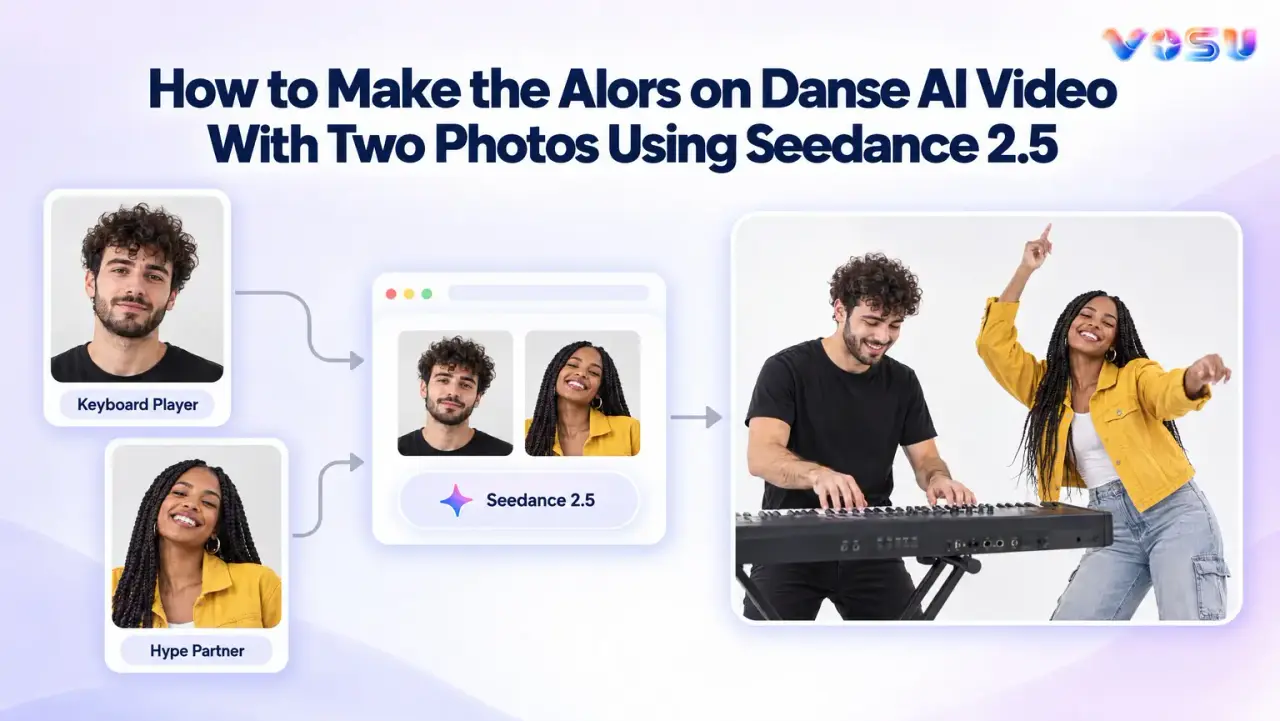
Use the VOSU template to turn two photos into the Alors on Danse AI scene with Seedance 2.5, then review and download the result without a watermark.
This workflow recreates the current two-person studio recast, placing one person in the keyboard-player role and the other in the hype-partner role. Choose Create Your Alors on Danse AI Video to enter the dedicated workflow when the live template is available.
Before generation, prepare one clear, consented photo of each person and match them to the template’s visible role labels. After Seedance 2.5 produces the scene, inspect both identities, confirm the roles, and check body scale, hands, keyboard details, and framing. Download only the version that keeps the intended pair readable throughout the result. Detailed photo selection and role assignment come next.
What Do You Need to Create the Alors on Danse AI Trend With Seedance 2.5?
You need two clear, consented photos, one chosen role for each person, the VOSU template, and Seedance 2.5 before generation.
Each photo should feature one main person so the two references remain distinct. Decide who will be the keyboard player and who will be the hype partner before entering the template workflow. The next section explains how to choose photos with readable faces and compatible framing. The section after that shows how to match each person to the correct functional role label before the Seedance 2.5 Alors on Danse workflow begins.
How Should You Choose Two Photos for the Alors on Danse AI Template?
Choose two separate, sharp photos with one clearly visible face in each and similar head-and-shoulder framing.
Use images of people who have consented to the transformation, with one main person per photo. A single unobstructed face gives the reference a clear subject, while group shots or tiny faces make it harder to determine which identity should guide the video.
Keep both crops compatible. Pairing a tight close-up with a distant full-body image can create an apparent scale mismatch between the two people. Similar face size, camera angle, and shoulder coverage give the template more balanced references. Use even lighting and a near-front or three-quarter angle so the model can read key facial features. Extreme angles, strong shadows, obstructions, or heavy filters can hide identity cues and increase drift. If a source is very soft or compressed, use a clearer original. When no sharper copy exists, use VOSU to improve visible detail in the weak source before uploading it, then confirm that the enhanced face still resembles the person. Once both photos are clear and comparable, assign each person to the keyboard-player or hype-partner field.
How Do You Assign the Keyboard Player and Hype Partner?
Assign each person by matching them to the template’s visible keyboard-player field or hype-partner field, rather than relying on screen position.
The keyboard player drives the instrument performance and anchors the studio scene. The hype partner supplies the more expressive gestures, interaction, and close-up energy around that performance. Choose each role according to the person you want carrying those actions.
The proposed numeric mapping remains unconfirmed, so do not assume that Photo 1 or Photo 2 controls a specific role until the final labels show it. Before continuing, verify that each intended person is paired with the matching functional label. That role assignment determines which identity guides each performance when you move into the VOSU generation workflow.
How Do You Generate the Alors on Danse AI Video in VOSU?
Open the VOSU template, upload two photos, generate the scene with Seedance 2.5, then inspect the result before downloading it. This four-step path keeps the Alors on Danse AI workflow focused: enter the dedicated template, add one reference to each role field, run the locked model workflow, and review the finished video before use.
Step 1: Open the Alors on Danse AI Template
Open the dedicated VOSU Alors on Danse AI template and confirm that it is the two-photo workflow before adding images.
Confirm the page title names the Alors on Danse AI workflow, two functional role fields are visible, and any displayed model label says Seedance 2.5. These cues separate the dedicated template from a generic video-generation surface. Follow the final keyboard-player and hype-partner labels rather than assuming a numbered photo order, then prepare to add one image to each field.
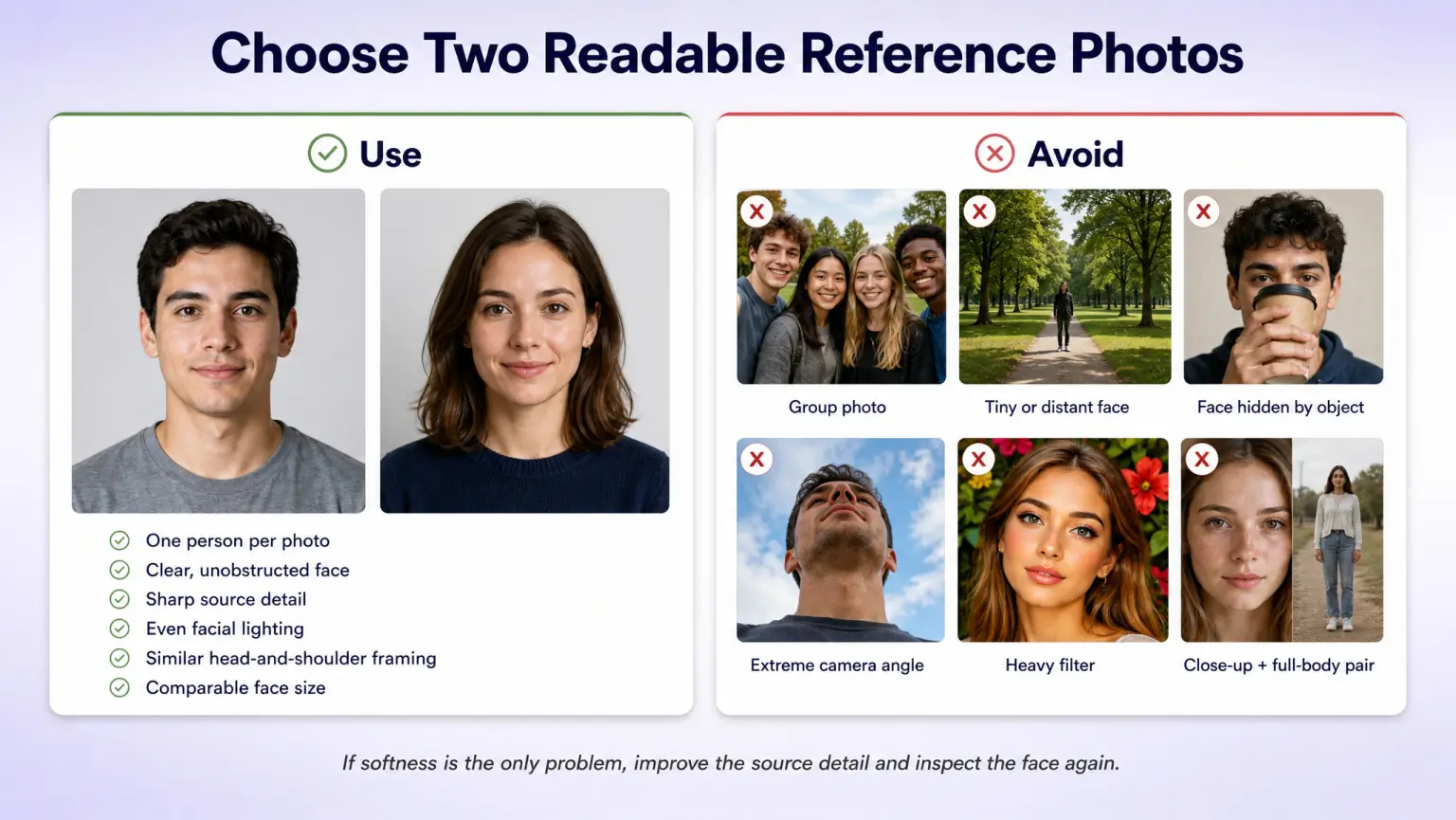
Clear, similarly framed portraits give the template more readable references than group shots, obstructed faces, heavy filters, or mismatched crops.
Step 2: Upload Two Photos
Add one clear, consented photo to the keyboard-player field and one clear, consented photo to the hype-partner field.
Use the visible role labels rather than assuming that Photo 1 or Photo 2 controls a performer. Check that each field contains the intended single-person reference. This gives the template a separate identity reference for each role. If the interface reports an issue, follow its on-screen guidance without guessing file requirements. Continue only when each person remains paired with the correct functional role.
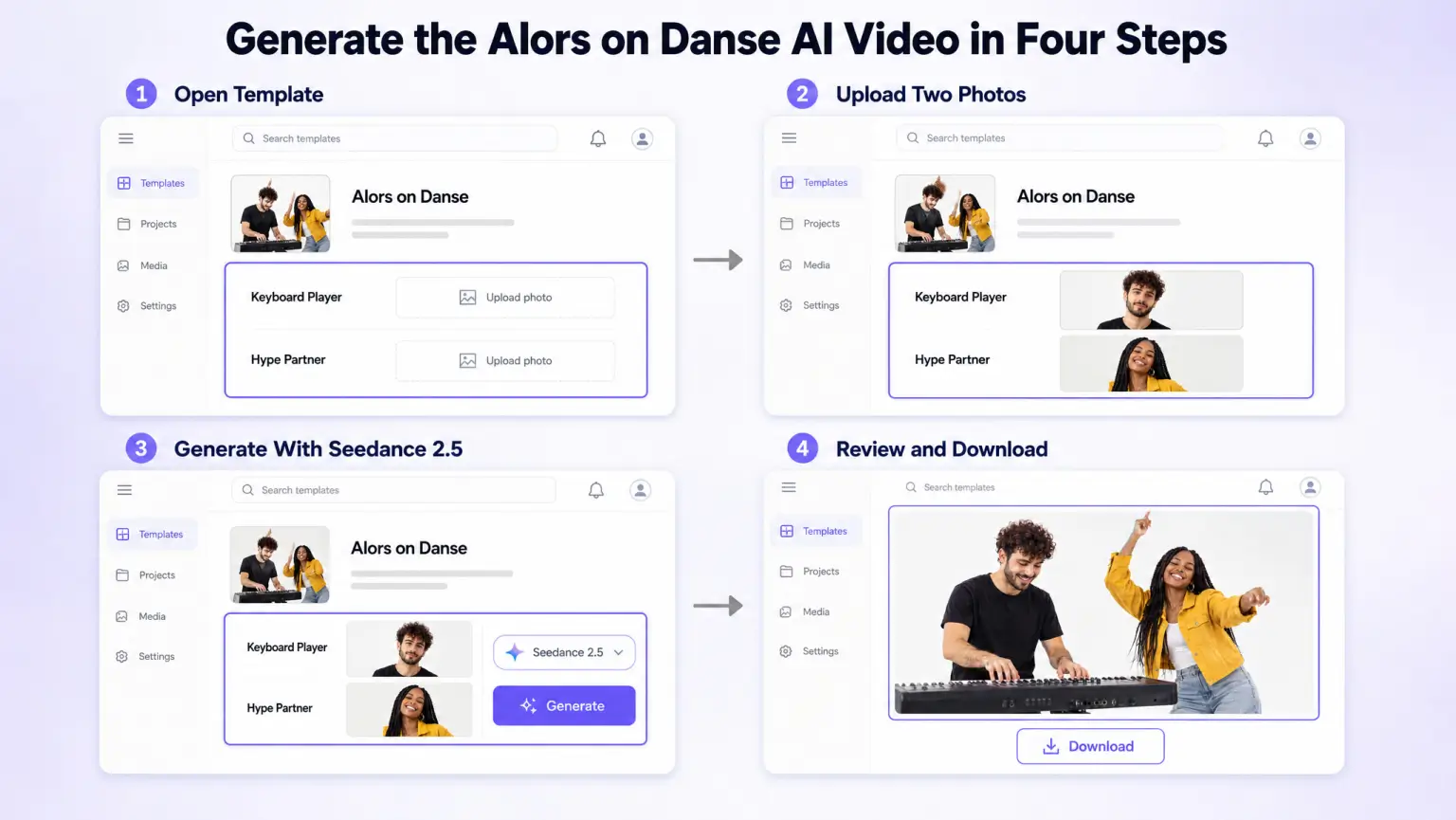
The VOSU workflow moves from the dedicated template and role-based photo upload to Seedance 2.5 generation and final result review.
Step 3: Generate the Video With Seedance 2.5
Generate the scene through the VOSU template’s locked Seedance 2.5 workflow.
The template passes the two assigned photos to Seedance 2.5 as references for the keyboard player and hype partner while keeping the prepared scene instructions inside the workflow. Reference images guide how the model interprets identity, framing, and the intended two-person performance, but they do not guarantee identical faces or motion in every frame. Keep the model selection aligned with the final interface, then continue to the result review.
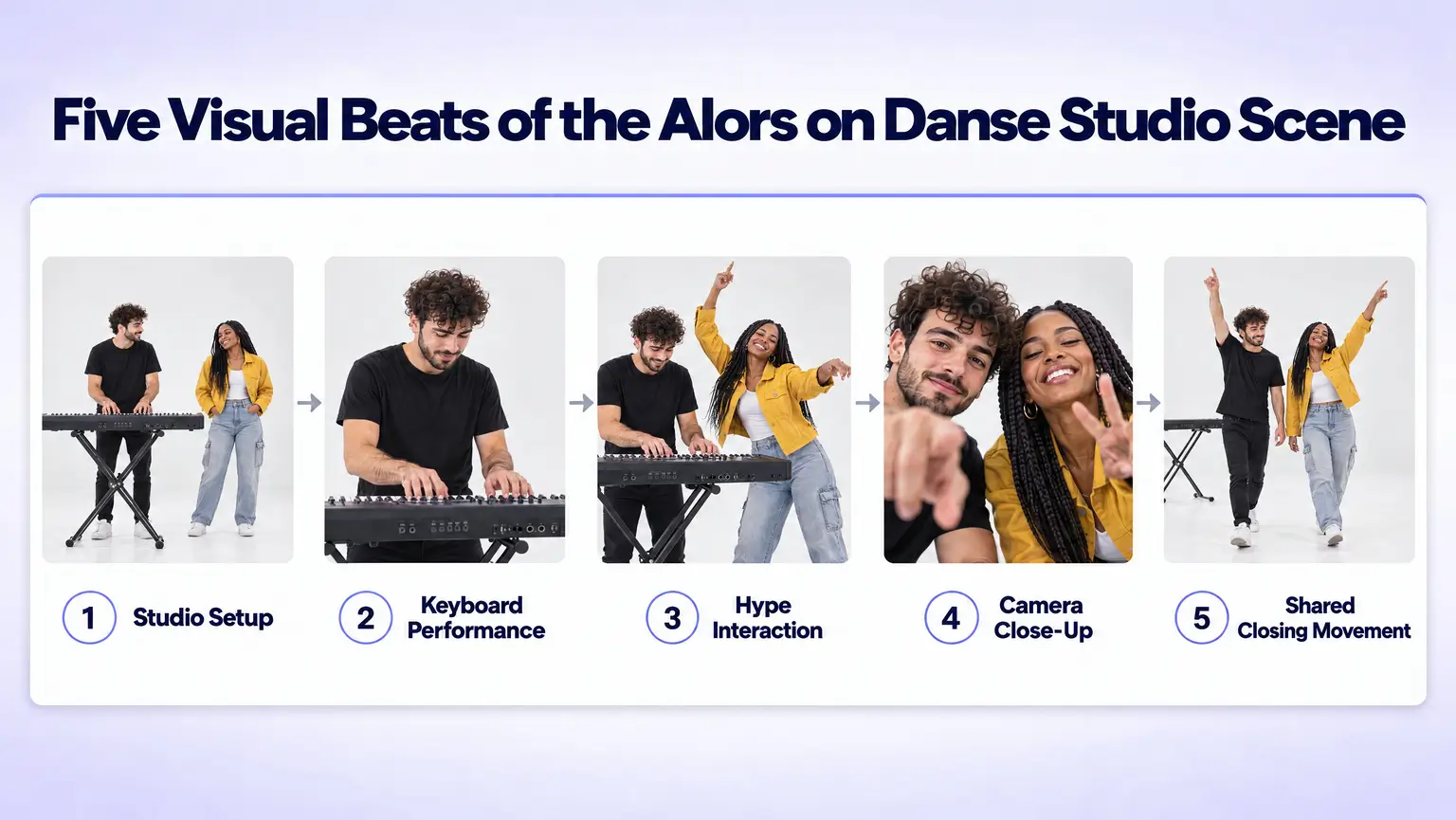
The five-beat sequence moves from the keyboard setup and contrasting performances to the close-up and shared closing movement.
Step 4: Review and Download Without a Watermark
Review both identities, roles, body scale, hands, keyboard details, and framing before you download the approved result without a watermark.
● Identities: Confirm both people remain recognizable in close-up.
● Roles: Verify the intended person performs each assigned role.
● Body scale: Check that neither person looks unnaturally large or small.
● Hands: Inspect fingers during gestures and instrument interaction.
● Keyboard details: Look for broken keys or unstable geometry.
● Framing: Confirm both performers remain readable within the composition.
Send identity drift to the face-consistency section. Use troubleshooting for role, hand, keyboard, scale, or framing problems, then generate another version only after identifying the failure.
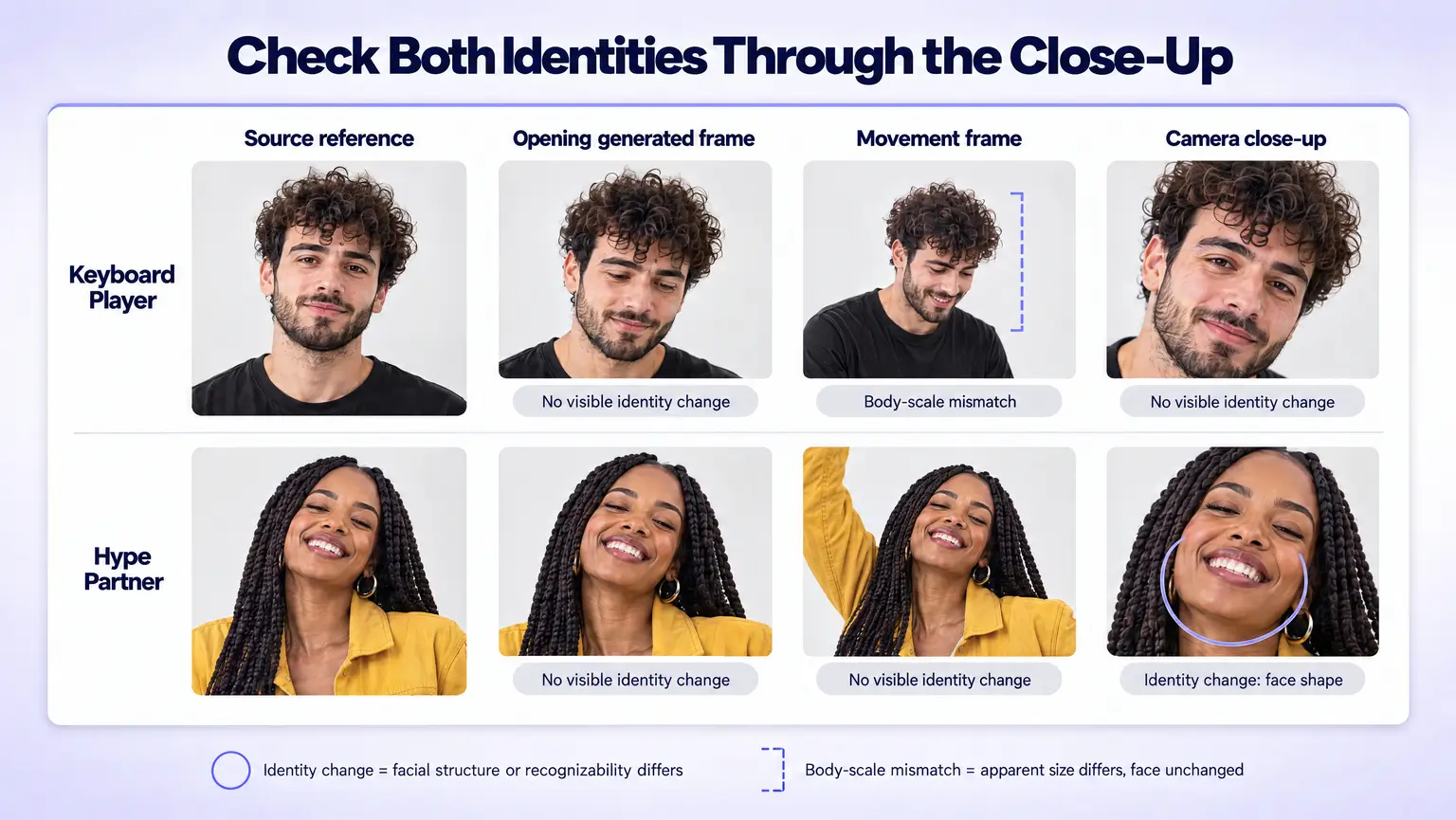
Comparing each source face with opening, movement, and close-up frames helps separate weak input detail, identity drift, and apparent scale mismatch.
How Do You Recreate the Original Alors on Danse Studio Scene?
Recreate the recognizable white-studio sequence by preserving the keyboard performance, hype gestures, camera close-up, and shared exit while changing the two featured identities.
The scene works as five connected visual beats. First, the keyboard player establishes the white studio and begins the performance at the keyboard. Second, that role keeps the action grounded through focused playing and restrained movement. Third, the hype partner energizes the frame with broader gestures and responsive movement around the performer. Fourth, the close-up brings both identities near the camera, making faces, scale, and role continuity especially important. Fifth, the two characters complete the sequence with a shared exit or closing movement.
When you recreate the Alors on Danse AI video, preserve this order and the contrast between the two roles. That recognizable grammar matters more than copying every frame of the Alors on Danse studio video. The white studio meme template can recast the scene with two new identities, but generated clothing, keyboard details, other props, body proportions, gesture timing, and fine motion may vary. Treat each result as a new rendition of the Alors on Danse studio meme, then compare its five-beat order with the source scene.
How Do You Improve Face Consistency in a Two-Person AI Video?
Improve face consistency by using clean reference photos with similar crops and apparent face scale, then check both identities from the opening frame through the close-up.
First, diagnose the type of problem. Input weakness exists when a face is small, soft, obstructed, unevenly lit, or heavily filtered before generation. Replace the weak reference with a clearer, similarly framed image that shows one main person. If the best available source still lacks facial detail, use VOSU to prepare a cleaner facial reference, then inspect the enhanced image before uploading it.
Generated identity drift is different: the references begin clearly, but facial traits change as the characters move or approach the camera. Seedance 2.5 reference media guides identity and framing without guaranteeing an exact match. Review both people at the opening, during motion, and in the close-up. If an AI video face changed between shots, note the first beat where it happens before generating again. This keeps the Seedance 2.5 two-character consistency check focused on the failure.
A body-scale mismatch can also resemble face drift. Compare head size, shoulder crop, and apparent distance in the source photos and output. If the identities remain recognizable but one person looks too large, too small, or incorrectly placed, treat it as a composition issue rather than a two-person AI face-swap video issue. Send role, object, and framing problems to the next troubleshooting section.
How Do You Fix Common Alors on Danse AI Video Problems?
To fix an Alors on Danse AI video, identify the visible problem before generating again: role setup, hand or keyboard interaction, or framing and body scale.
Use the role branch when performers switch functions, the interaction branch when hands or keys break, and the composition branch when crop or scale looks wrong. Keep facial identity drift with the previous section.
Why Did the Two People Switch Roles?
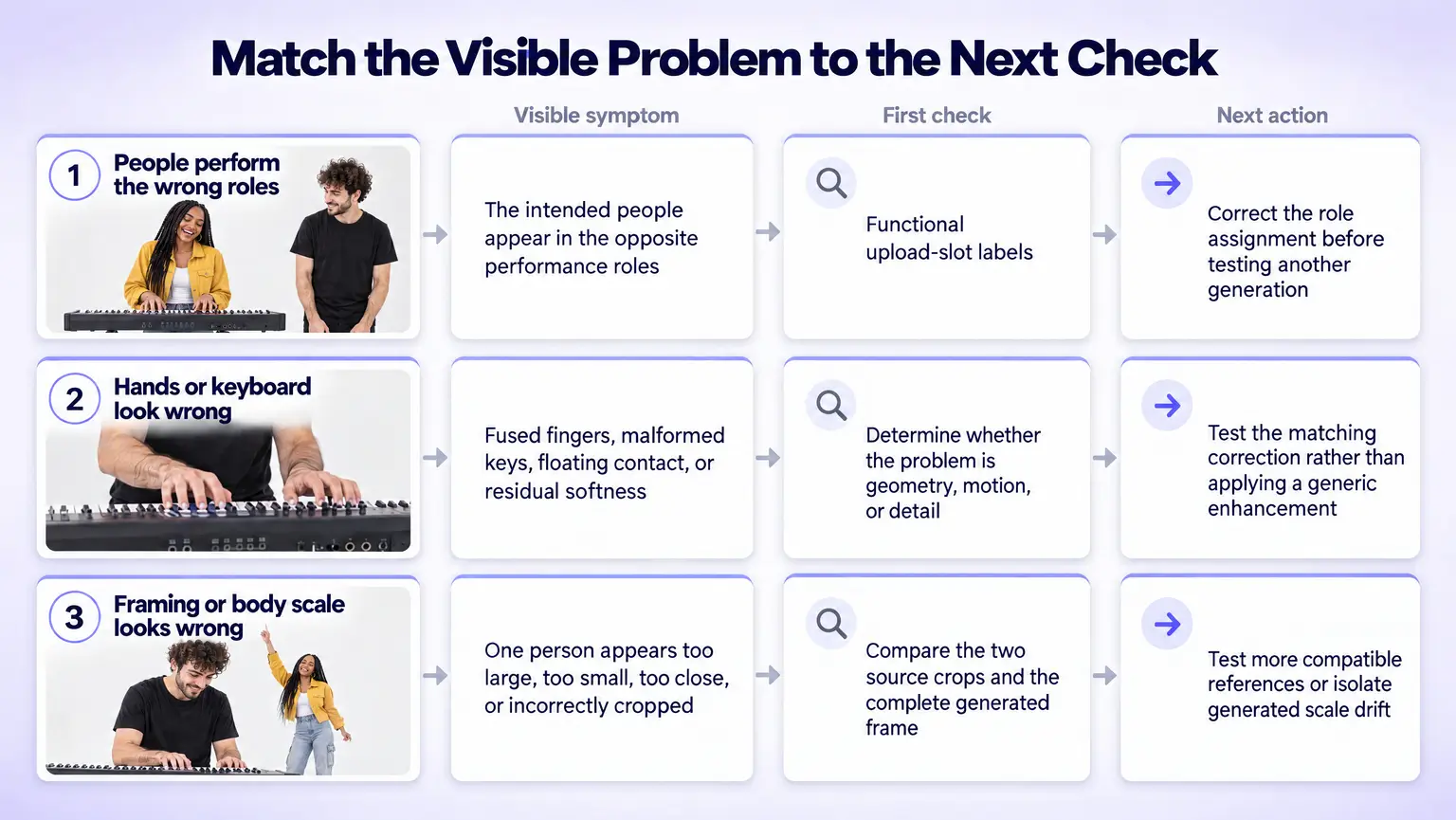
The decision grid connects switched roles, interaction artifacts, and composition problems with the correct diagnostic check before another generation.
Recheck the labels on both photo slots, place the intended keyboard player and hype partner in their matching inputs, then generate again.
If the two people switch roles, first test whether the references were added to the wrong functional slots. Read each label rather than relying on where a slot appears on the screen. Keep the intended keyboard performer in the input labeled for that function and the other person in the hype-partner input. This can correct a slot mismatch, but it does not prove the model failed or that screen position controls the final performance.
How Do You Fix Hand and Keyboard Artifacts?
Inspect the hands and mini keyboard at full size, then match the correction to geometry, motion, or residual softness.
Fused fingers, warped keys, or broken hand-to-key contact indicate geometry problems. Sliding, floating, or inconsistent contact across frames points to motion trouble. Test cleaner references and compare the same frames after another generation, recording whether the defect changes. If the interaction is already correct and only fine detail looks soft, use VOSU to sharpen residual detail in the accepted clip. Upscaling cannot rebuild fingers, repair keyboard geometry, correct motion.
How Do You Correct Framing or Body-Scale Problems?
Compare the two source crops and apparent subject scale, then use more compatible references before generating another version.
A source-crop mismatch exists when one person begins much closer, smaller, or differently framed than the other. Test a better-matched pair using the photo-selection guidance above. Generated body-scale drift occurs when similar inputs produce unequal proportions in the scene. Test one controlled version with the same pair and compare the same beat. A final-output crop is different: inspect the complete generated frame before resizing or placing it in another layout. Enhancement cannot change composition, proportions, or camera framing.
How to Choose the Best Platform to Recreate the Alors on Danse AI Trend
Choose a platform like VosuAI that provides a dedicated two-photo template, clear role mapping, verified Seedance 2.5 execution, result review, and a usable final download.
Use these checks in order. The best AI tool for a two-person face swap must expose a visible, testable workflow, not one attractive feature.
- Exact trend-template fit. Confirm that the workflow preserves the white-studio keyboard performance, hype gestures, close-up, and exit. If a platform offers only broad image-to-video controls, compare them with VOSU’s general still-image video workflow before checking for the dedicated scene.
- Two-photo intake. The platform should accept two separate reference photos, with one person assigned to each input.
- Role transparency. Each slot should identify its performance function, so you can assign the keyboard player and hype partner without guessing from screen position.
- Model verification. Require the workflow to identify Seedance 2.5 explicitly. A generic model claim is not enough.
- Reference handling. Confirm that both photos guide generation. References can guide identity, framing, and scene interpretation, but they cannot guarantee exact consistency.
- Scene and review control. The prepared workflow should preserve the scene structure and let you inspect faces, role continuity, hands, keyboard interaction, body scale, and framing.
- Output readiness. Confirm that an approved result can be downloaded without a watermark. Do not assume unverified duration, resolution, ratio, audio, or file format.
- Trust and handoff. Look for clear consent expectations, accurate model labeling, understandable correction paths, and a defined transition from review to final download.
An AI video generator from two photos is two-person capable only when this full chain is visible and reviewable.
If you need this two-person studio recast, choose VOSU once its live template confirms two labeled role inputs, Seedance 2.5, result review, and a usable download. Next, identify the source, correct the making-of label, separate the 2021 revival, choose the cast, assess the model boundary and use cases, prepare distribution, review rights, and complete the final action.
What Is the Original Alors on Danse Video Behind the AI Trend?
The AI trend draws its source scene from a 2010 Made in Jamel comedy sketch featuring Stromae and Jamel Debbouze, while the song “Alors on danse” was released in 2009.
The song therefore predates the white-studio performance. When people search for the Alors on Danse original video, the relevant visual reference is the sketch, not the song’s official music video.
Is the Viral Clip an Alors on Danse Making-Of Video?
No. The white-studio clip is a scripted comedy sketch, not an Alors on Danse making-of video or a documentary account of how the song was created.
The label likely persists because Stromae appears at a keyboard in a staged studio setting, which can resemble behind-the-scenes footage when viewed without context. Use the original Alors on Danse sketch to identify the source correctly.
How Is the 2026 Alors on Danse AI Trend Different From the 2021 TikTok Dance?
The 2021 Alors on Danse dance trend centered on a slowed TikTok routine, while the 2026 AI trend places two chosen identities inside the white-studio comedy scene.
The earlier format asked users to perform the movement themselves. The current workflow instead asks you to provide two photos, confirm the keyboard and hype roles, and let the template generate the recast scene.
Who Should Be the Keyboard Player and the Hype Partner?
Give the calmer or more deadpan person the keyboard role and the more expressive person the hype-partner role.
The contrast makes the interaction easy to read: one performer anchors the scene at the keys while the other supplies larger reactions. After choosing, place each person in the template slot labeled for that function rather than relying on left or right.
Can Seedance 2.5 Keep Two Characters Consistent?
Seedance 2.5 can use two reference images to guide character identity and scene interpretation, but it cannot guarantee perfect consistency.
Reference control provides visual cues for both people instead of locking every feature across frames. To distinguish the generic model surface from this prepared template, inspect Seedance 2.5’s VOSU model workspace, then review identity, body scale, hands, and crop before accepting the clip.
Can You Make the Studio Meme With Friends, Couples, or Teammates?
Yes, the two roles can feature a friend duo, couple, or teammate pairing when the template supports them.
The relationship changes the joke, not the workflow. Try the caption, “One keeps the beat, one brings the chaos.” If you want another two-person studio recast after this one, compare the role setup in VOSU’s hotel-lobby duo-casting walkthrough for a different visual premise.
Can You Use Fictional Characters or Public Figures in the AI Parody?
Fictional characters or public figures can make an AI parody recognizable, but the post should never imply that a real person created, endorsed, or performed the scene.
A Gandalf-and-Frodo Alors on Danse pairing shows how a familiar fictional duo can reshape the joke. Recognizability alone does not settle permission, likeness, platform policy, or deception questions, so review each separately before sharing.
Can You Post an Alors on Danse AI Video on TikTok or Reels?
You can prepare an Alors on Danse AI video for TikTok or Reels, but confirm the final crop, disclose realistic AI alteration, and avoid presenting the scene as real.
Do not assume one aspect ratio will suit every output or placement. Before publishing an Alors on Danse AI TikTok or Instagram Reel, recheck the platform’s current synthetic-media, labeling, music, and eligibility rules.
What Should You Know About the Song, Likeness, and AI Disclosure?
Treat photo permission, music or source-footage rights, and AI disclosure as separate checks before publishing an Alors on Danse AI video.
Get permission to use each person’s likeness. Confirm that your planned song or source-clip use is allowed for the intended platform and context. Label realistic AI alteration when required. The visual template itself does not grant music, footage, likeness, or distribution rights.
Where Can You Use an Alors on Danse AI Video Generator With Two Photos?
Use the dedicated VOSU template to add two photos, confirm the keyboard-player and hype-partner assignments, generate through Seedance 2.5, and review the result before downloading it.
This Alors on Danse AI video generator keeps the workflow centered on the two required inputs, role mapping, chosen model, and approved output. Start with the photos and proceed only after both role labels match your intended casting.