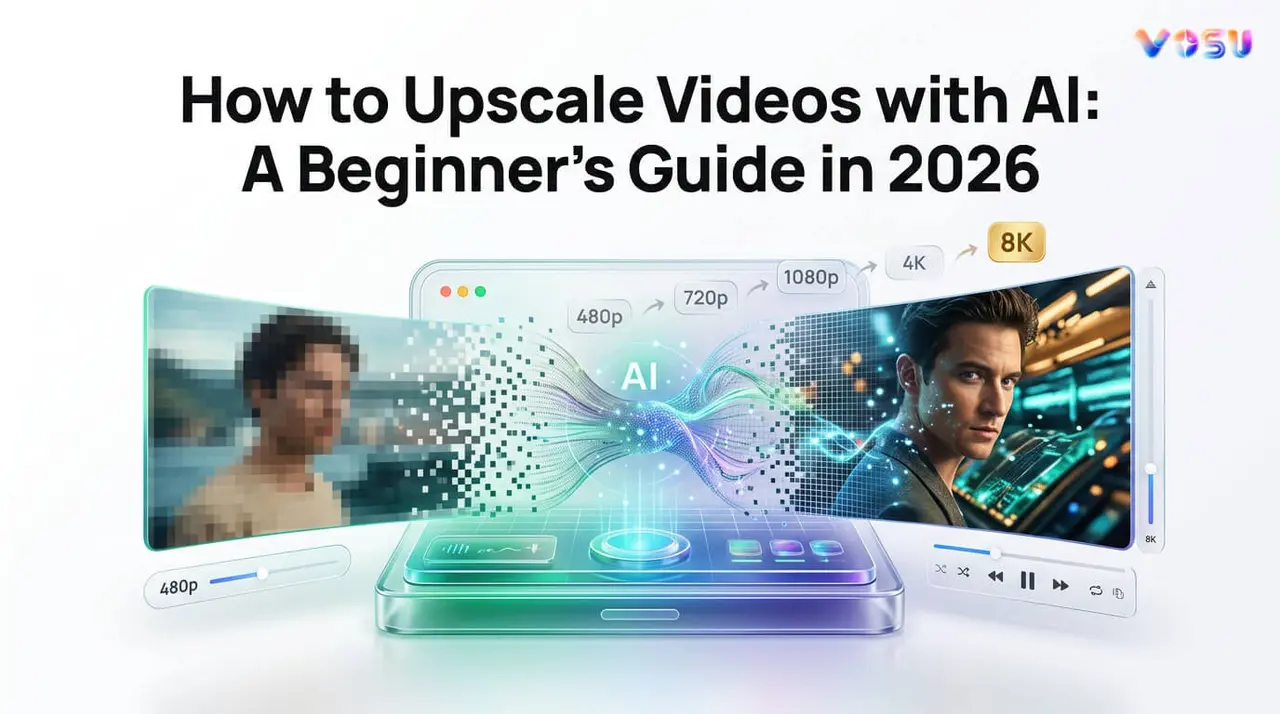
AI video upscaling is a process that uses artificial intelligence to make video higher quality by reconstructing missing visual details in low resolution footage. An AI video upscaler analyzes textures, motion, edges and noise patterns to intelligently generate sharper and more detailed frames. Users can upscale low quality videos through VosuAI.
Open VosuAI’s AI upscaler and choose a model such as Magnific Video Upscaler, SeedVR Upscale Video, Topaz Upscale Video or VOSU Upscaler Video based on your quality needs. Click the upload button or drag and drop your video file (MP4, MOV or AVI). Select the output quality like 720p, 1080p, 2K or 4K based on usage. Fine tune enhancement options such as noise reduction, detail enhancement, temporal consistency and motion smoothness. These controls help improve clarity and stability in the final video. Start processing by clicking upscale now. Wait for the AI to enhance your video, then download the final high quality version once processing is complete.
AI video upscaling improves resolution, reduces noise and compression artifacts, reconstructs fine details, stabilizes motion and allows cost effective restoration of legacy footage. It is widely used for streaming, archival enhancement and professional content creation where clarity and quality matter. AI video upscaling works through three core stages such as artifact removal, pattern recognition and predictive reconstruction. This allows an AI video upscaler to transform low quality video to high quality results that closely match modern HD or 4K standards.
What is AI video upscaling?
AI video upscaling is the process of enhancing low resolution video footage by using artificial intelligence to reconstruct additional visual detail and improve overall image quality. An AI video upscaler performs intelligent analysis of textures, edges, motion, blurriness, blockiness and sensor noise to generate cleaner and sharper frames. AI video upscale technology predicts and reconstructs missing visual information based on patterns learned from high quality training data, unlike traditional scaling methods that simply enlarge existing pixels.
AI video upscaling also incorporates noise reduction to minimize unwanted artifacts while preserving important details in faces, text and objects. This results low resolution footage achieving a visual quality that approaches higher resolution formats such as 4K video. This technology is widely used in streaming platforms, archival restoration and production content creation, where older or lower quality videos need to meet modern viewing standards.
How to upscale a video online using VosuAI?
To upscale a video online using VosuAI, select the upscaling model, upload the video, choose the resolution and adjust settings. VosuAI's online video upscaler converts any low resolution video into a sharp, high definition video in minutes without any software downloads or technical skills. It increases video clarity, improves details, reduces noise and generates a sharper, more professional looking result.
5 steps to upscale a video online using VosuAI are listed below.
1. Select the upscaling model
2. Upload the video
3. Choose the resolution
4. Adjust settings
5. Click the upscale button
The before and after comparison of video upscaling using vosuAI is visualized below.
1. Select the upscaling model
Visit VosuAI, sign up and open the VosuAI home page. Navigate to AI Studio, click AI Video and select AI Video Upscale to open the upscaling dashboard. Open the dropdown menu to view available video upscaling models. Check the right side panel to explore options like Magnific Video Upscaler, Magnific Video Upscaler Precision, SeedVR Upscale Video, Topaz Upscale Video and VOSU Upscaler Video to select the preferred model.
2. Upload the video
Click the upload button or drag and drop your video file directly into the VosuAI workspace. Make sure your source file is in MP4, MOV or AVI format. Wait for the upload to complete as VosuAI processes everything on its cloud servers, so your device hardware does not affect speed or quality. Confirm the correct video appears in the preview panel before moving to the next step.
3. Choose the resolution
Select your target output resolution from the available options such as 720p, 1080p, 2K and 4K, after uploading the video. Match your resolution choice to your use case like pick 1080p for social media, 2K or 4K for YouTube, product showcases and professional presentations. Choose an enhancement preset such as sharp, smooth or standard ultra to optimize the video’s clarity, detail and overall visual quality.
4. Adjust settings
Adjust all settings to improve final output quality. Set temporal consistency to keep color, brightness and visual tone stable across consecutive frames. Adjust the detail enhancement slider to control how aggressively VosuAI sharpens edges and fine textures. Turn on noise reduction to remove grain, compression artifacts and visual static from your source video. Set motion smoothness adjustment to reduce jitter and frame to frame inconsistency. Set the output number like 1,2,3 or 4 to compare the video output. These settings let you control how aggressively VosuAI enhances your footage beyond basic resolution scaling.
5. Click the upscale button
Click the upscale now button to start processing and let VosuAI run the enhancement automatically. Wait for processing to complete, as shorter clips at 1080p finish faster, longer videos at 4K take more time. Open your dashboard when processing completes. Click download to save your finished high definition video directly to your device. Use the output immediately across any platform, campaign or content channel without any further editing.
VosuAI delivers ready to share videos. Users can also upscale another video while their first video is still being processed. Continue working on a new video instead of waiting, which saves time and makes the entire process faster and more productive.
Why choose AI video upscaling?
Choose AI video upscaling for resolution enhancement, noise and artifact reduction, detail reconstruction, frame interpolation and one click stabilization. AI video upscaling improves clarity, stabilizes motion and supports video quality improvement for streaming, archiving and content workflows. It helps teams make videos of higher quality from legacy libraries.
The benefits of choosing AI video upscaling are given below.
- Resolution enhancement: AI video upscaling converts low quality video to high quality by predicting missing pixels and edges. It translates learned patterns into sharper contours, cleaner lines and stronger detail.
- Noise and artifact reduction: AI video upscaling targets compression blocks, random grain and banding without erasing important texture. It removes artifacts while preserving structure so viewers perceive cleaner frames.
- Detail reconstruction: AI video upscaling rebuilds fine texture on faces, fabrics and environments to improve video quality. It restores subtle gradients and micro contrast that standard scaling blurs or loses.
- Frame interpolation: AI video upscaling generates intermediate frames that smooth motion and reduce judder. It analyzes object paths and motion vectors, making motion playback appear more fluid at higher frame rates.
- One click stabilization: AI video upscaling aligns frames to counteract hand shake and small camera movements. It calculates scene anchors and keeps key subjects centered, which prevents distracting jitter.
- Cost effective restoration: AI video upscaling upgrades footage without rescanning or reshooting source material and upgrades quality pipelines. It extends content lifespans and reduces manual restoration work for back catalogs.
How does AI video upscaling work?
AI video upscaling works by using artifact removal, pattern recognition and predictive reconstruction. It analyzes low resolution frames, detects structured noise and uses an AI video resolution upscaler across sequences. It also tracks edges, textures and motion vectors so it learns how objects move and deform over time as a video resolution increaser.
3 steps of how AI video upscaling works are given below.
- Artifact removal: AI removes noise, blur and compression artifacts from low resolution video frames. It cleans visual imperfections to prepare the footage for accurate enhancement and ensures smoother, clearer input for further processing.
- Pattern recognition: AI analyzes motion vectors and visual patterns across frames to understand shapes, textures, and movement. This helps the video resolution increaser identify consistent details and maintain temporal coherence.
- Predictive reconstruction: AI reconstructs missing pixels by predicting fine details using learned data. The AI video resolution upscaler enhances sharpness, restores textures and generates high resolution output while preserving natural motion and scene consistency.
What types of videos work best for upscaling?
The types of videos that work best for upscaling are given below.
- Archival and vintage footage: AI enhances old videos, VHS quality clips and legacy broadcast recordings by restoring clarity and improving overall visual detail.
- Low resolution AI generated video: AI improves pixelated or soft AI generated videos by reconstructing missing details and increasing sharpness for a cleaner output.
- Early digital camcorder recordings: AI upgrades early home videos by reducing compression artifacts and enhancing clarity for a more stable and refined viewing experience.
- Clean studio footage: AI subtly enhances professionally recorded studio videos by improving sharpness, texture and overall visual consistency without altering original quality.
Does an AI video upscaler work equally for all types of videos?
No, an AI video upscaler does not work equally for all types of videos because input quality and content characteristics change its results. It handles grainy footage, old videos and highly compressed videos with blocking or pixelation differently from clean sources. It struggles more with fast motion footage, where motion tracking and detail reconstruction remain harder.
Does AI upscaling improve old videos?
Yes, AI upscaling improves old videos because its video restoration pipelines focus on reducing noise and correcting visual defects. AI upscaling tackles compression artifacts in each frame. It enhances old videos so legacy footage shows clearer faces, sharper edges and more stable motion on modern screens.
Can AI upscale old movies?
Yes, AI can upscale old movies by improving low resolution and blurry footage. It reduces noise, sharpens details and repairs minor visual damage, making aged films clearer on modern screens. This helps in upscaling the quality of old movies while preserving as much original detail as possible.
How long does video upscaling take?
Video upscaling takes 1 to 10 minutes per minute of footage, which depends on the resolution jump, total length and frame rate. Video processing time also varies in cloud based upscalers based on system load and the efficiency of the AI model. An AI video upscaler with advanced systems helps achieve faster video enhancement while balancing quality and speed. Users can save time using VosuAI while upscaling a video.
Can you upscale low quality videos to 4k?
Yes, you can upscale low quality videos to 4K using VosuAI’s advanced upscaling technology. AI video upscaling enhances videos by learning visual patterns to improve clarity, sharpen details and upgrade footage to higher resolutions like 4K. It helps creators produce cleaner and more professional visuals using modern video upscaling tools.
Can you upscale low quality videos without losing quality?
Yes, you can upscale low quality videos without losing quality because AI pipelines fix video quality by analyzing textures, edges and noise patterns. It enhances clarity and reduces visual artifacts by analyzing textures, edges and noise patterns. Its results depend on the quality of the original footage and the AI model used.
Will the file size increase after using the AI video upscaler?
Yes, the file size will increase after using the AI video upscaler because higher resolution adds more data per frame. AI video upscaler workflows depend on codec choices or compression for each export. It can compress 4K video for a low bitrate, so editors control final storage.
Can you use an AI video upscaler on mobile?
Yes, you can use an AI mobile upscaler on mobile because a video upscaling app runs in the browser and processes clips from your phone. VosuAI provides a beginner friendly mobile and web interface that works like a video upscaling app, which makes it simple for users to upscale videos directly from their phones.
Are there free AI video upscalers online?
Yes, there are free AI video upscalers online because some platforms handle heavy computing power on their servers. These tools run on cloud based systems, which allow users to test video enhancement before upgrading to premium options for higher quality and faster processing.
Can you upscale videos without a watermark?
Yes, you can upscale videos without a watermark because many AI video upscaling tools provide clean export options that do not embed branding or overlays in the final output. VosuAI’s outputs are always watermark free, which assures users receive clean, professional results, while the sharpening process enhances edges and details without adding any visual marks.