You can recreate the Hotel Lobby AI video directly from the ready-made Hotel Lobby template on VOSU. Open the template, replace the two character references and generate your version of the orange studio performance.
This guide shows the complete process using Sam Altman on the left and Elon Musk on the right as an AI parody example. You will find the reference images, the full Seedance 2.5 prompt, natural-skin instructions, manual generation settings and fixes for common problems. You can also use the same setup with your own face and a friend’s face.
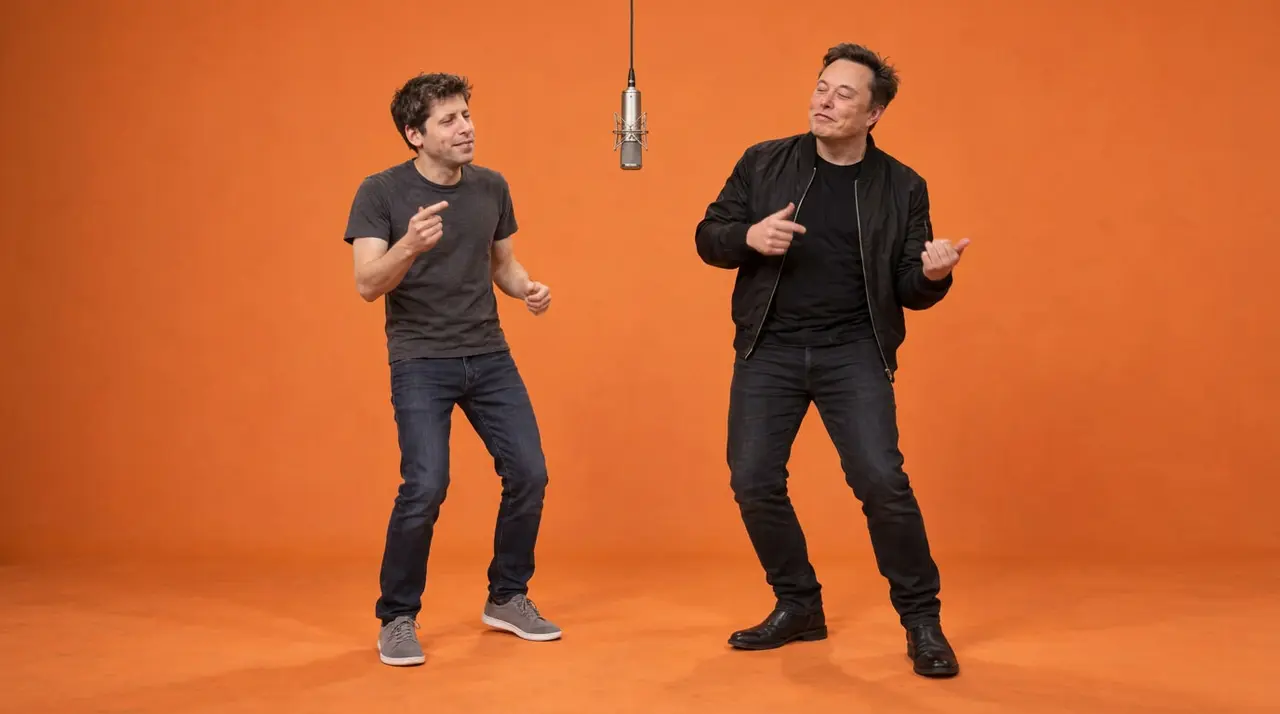
AI-generated parody illustration of the Hotel Lobby concept with Sam Altman and Elon Musk.
Start here: Recreate the Hotel Lobby video on VOSU. Use the prepared template for a direct starting point. Follow the manual section later in this guide when you want to rebuild the source clip or adjust the workflow yourself.
What is the Hotel Lobby AI trend
The Hotel Lobby AI trend replaces the performers in Quavo and Takeoff’s “HOTEL LOBBY” COLORS performance with different people or characters. The recognizable setup is an orange studio, two performers and a microphone hanging between them. The joke comes from seeing an unexpected pair take over that performance.
You may also see it described as the Migos Hotel Lobby AI trend, the Unc & Phew AI video or the orange studio character swap. Those searches describe the same basic creative idea. In a convincing version, the replacements keep their own faces and clothes while following the original gestures, expressions and timing.
How to use the Hotel Lobby template on VOSU
1 Open the ready-made Hotel Lobby template
Go directly to the VOSU Hotel Lobby template and use the available recreation option to start your version. Retain the prepared performance and its configured settings while you change the people. The template gives you a starting setup, so the manual source-trimming instructions below are optional.
2 Assign a person to each performer
Decide who replaces each original performer before adding references. In our example, Person 1 is Sam Altman and replaces the performer who starts on the viewer’s left. Person 2 is Elon Musk and replaces the performer who starts on the viewer’s right. Keep those assignments consistent in the uploads and the prompt.
3 Add the two character references
Use one clear character sheet for each person in the two-reference setup shown below. Each sheet should show only that person, with visible facial detail and one consistent outfit. Include full-body views with both feet visible. A portrait alone leaves the model to infer trousers, shoes and body proportions.
When personalizing the template, update the identity references and any matching person descriptions. Keep the performance reference in place. For a manual setup, attach the prepared source video as well as the two character sheets, then check which uploaded file corresponds to each reference label.
4 Check the settings and generate
Review the prompt’s left and right assignments, outfit descriptions and natural-skin instructions. Use the template’s configured settings for the prepared effect. If you are building manually, select Seedance 2.5 and use the matching duration and aspect ratio listed below. Read the displayed credit estimate before submitting, then generate one result for review.
5 Watch the complete result
Watch from the first frame to the last. Check both faces during head turns, hand gestures and camera cuts. Look for swapped identities, changing clothes, waxy skin and drifting mouth movements. Download the result once it holds together throughout the performance, finish the audio if needed, and export for your chosen platform.
What photos work best for the Hotel Lobby AI template
Choose sharp, evenly lit photos with visible facial features and minimal obstruction. Keep the appearance consistent: a recent face photo, an older haircut and a different outfit can give the model conflicting instructions. If you need several source photos, state which one controls the face and which one controls the clothing.
A useful character sheet combines front, three-quarter, side, back and close-up views of the same person. Build it from reliable references, and inspect any AI-generated views for changes to the face or clothes. The Sam Altman and Elon Musk sheets below show the layout used for this example. They are AI-generated reference illustrations.
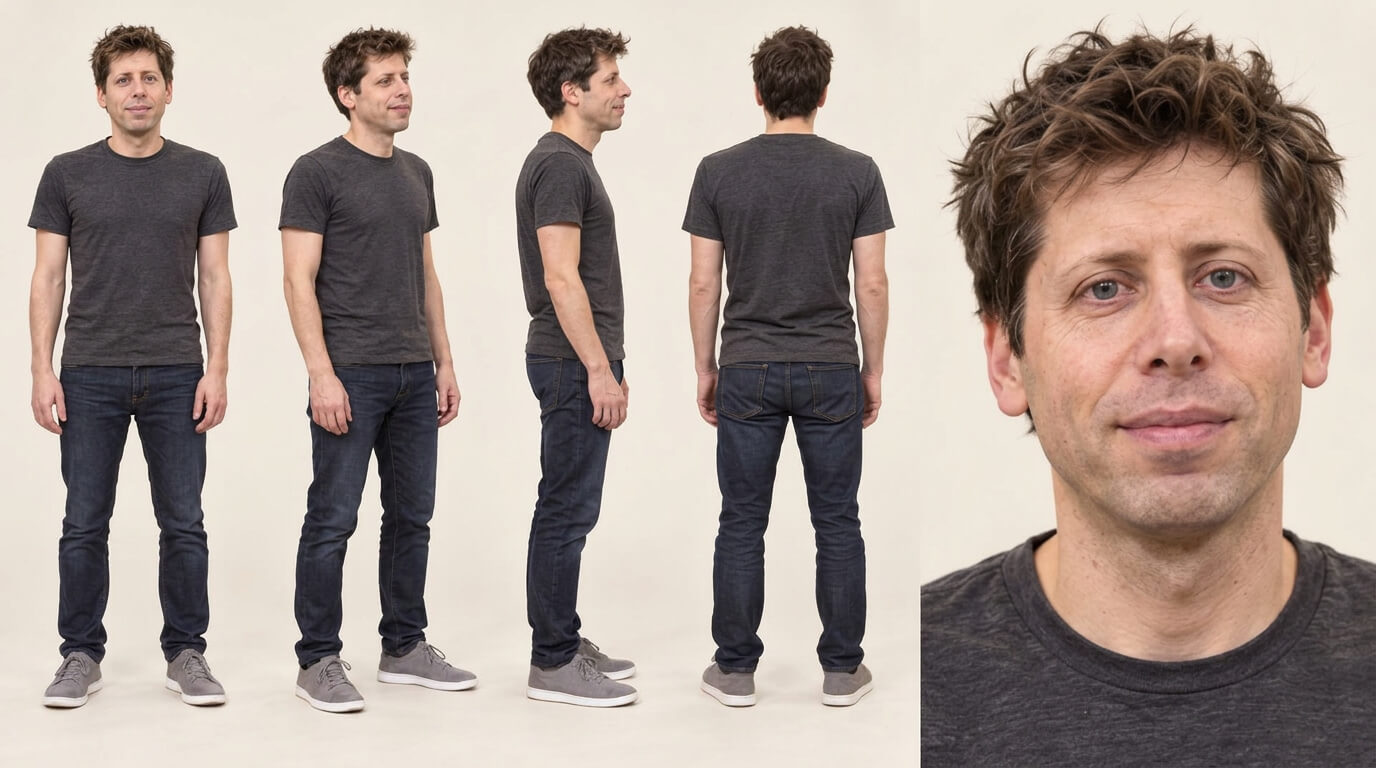
Person 1 reference example for the left performer: Sam Altman in a charcoal T-shirt, dark jeans and gray sneakers. AI-generated illustration.
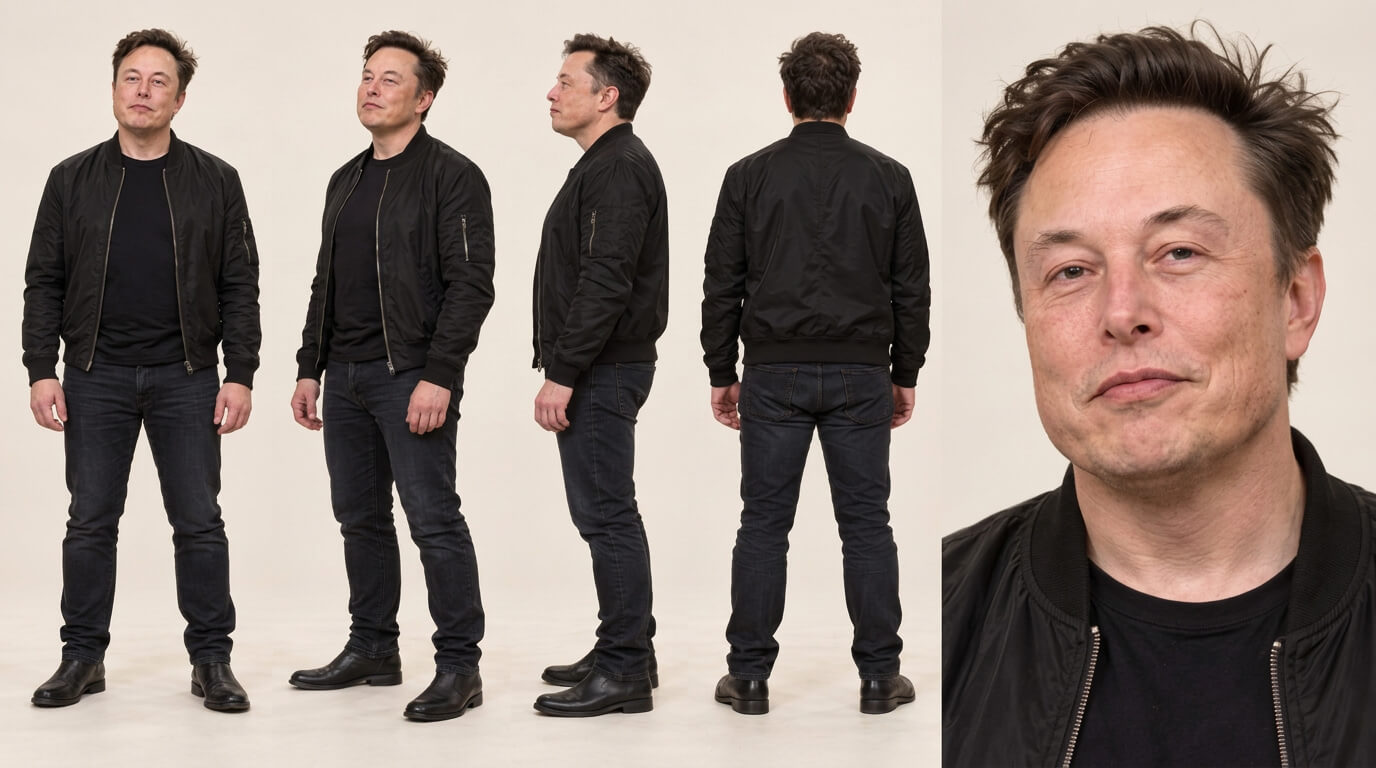
Person 2 reference example for the right performer: Elon Musk in a black bomber jacket, black T-shirt, dark jeans and black boots. AI-generated illustration.
| Reference | Assignment | What it controls |
|---|---|---|
| @video1 | Prepared performance | Movement, expressions, timing, camera and scene |
| @img1 | Sam Altman on the left | Sam’s likeness, charcoal T-shirt, dark jeans and gray sneakers |
| @img2 | Elon Musk on the right | Elon’s likeness, black bomber jacket, black T-shirt, dark jeans and black boots |
Use the reference labels shown in your VOSU session. If the interface uses different capitalization or numbering, update every matching label in the prompt. Keep each identity attached to its original performer through the entire edit, even if the framing changes.
How to keep the skin natural in your AI video
Start with a reference that already looks like a real person. Preserve pores, fine lines, small blemishes, subtle redness and uneven skin tone. For the Sam and Elon examples, the close-ups retain facial texture and age detail instead of smoothing the face into a uniform surface.
Ask for natural texture under the source lighting. Bright areas on the forehead, nose and cheeks should still look like skin, and the face, neck and hands should belong to the same person. Avoid references with heavy beauty filters or retouching, since the model may carry that appearance into the video.
The full prompt below includes an explicit natural-skin section. Review moving frames as well as still images: a face can look convincing while facing forward and become waxy during a head turn. If that happens, replace the weakest reference with a clearer view and test the same section again. Adding stronger sharpening can make the texture look artificial, so improve the reference first.
Recommended generation settings for this workflow
VOSU’s Seedance 2.5 video generator lists video and image references, 4:3 output, a 29-second duration option and 1080p resolution. The following settings match the prepared source used in this tutorial; they are not requirements for every Hotel Lobby variation.
| Setting | Use for this version |
|---|---|
| Model | Seedance 2.5 |
| Workflow | Hotel Lobby template or a source-preserving video edit |
| Final duration | 29 seconds with an exactly 29-second source |
| Aspect ratio | 4:3 to match the prepared source |
| Final resolution | 1080p |
| Generate Audio | Off for the manual workflow; restore the source soundtrack in the editor |
| Outputs per attempt | 1, followed by a full review |
When building manually, make a five-second test with visible gestures and a face turn. Use a matching five-second source and duration, then compare the two clips at the same timestamps. If the result invents movement or changes the set, check that you are using a source-preserving edit workflow. Adding a reference video to a general generation flow does not guarantee that it will reproduce the performance.
Copy and paste Hotel Lobby AI video prompt
Attach the source video and both character sheets first. This reusable prompt uses Person 1 and Person 2, so you can apply it to your own pair. It asks the model to preserve the performance while changing identity and wardrobe. Those instructions still need to be checked in the output.
Edit the entire existing source video @video1. Replace the performer who begins on the viewer's LEFT with Person 1 from @img1, and the performer who begins on the viewer's RIGHT with Person 2 from @img2. Make both people photorealistic, with recognizable and consistent likeness to the supplied character model sheets throughout every shot.
Identity and Reference Assignments:
Person 1 is the sole subject of @img1. Use the full set of views (front, 3/4, side, back, close-up) as the complete identity and wardrobe reference. Preserve Person 1’s exact face, hair, skin texture, body proportions, and expression range. They wear the exact full costume shown across all views in @img1. Keep this complete outfit identical in every shot.
Person 2 is the sole subject of @img2. Use the full set of views (front, 3/4, side, back, close-up) as the complete identity and wardrobe reference. Preserve Person 2’s exact face, hair, skin texture, body proportions, and expression range. They wear the exact full costume shown across all views in @img2. Keep this complete outfit identical in every shot.
Preserve each person’s individual eye shape and spacing, eyebrows, nose, lips, jaw, hairline, facial hair and natural skin texture. Keep the two identities distinct. Do not average their faces or retain the original performers’ features. Reproduce the source expressions and mouth movements naturally.
Natural Skin and Lighting:
Preserve visible pores, fine lines, small blemishes, subtle redness and natural variation in skin tone. Keep age-appropriate facial detail and realistic texture on the face, neck and hands. Preserve normal skin highlights under the source lighting. No plastic, waxy or airbrushed skin, beauty-filter smoothing, artificial gloss or exaggerated sharpening. Do not erase natural facial asymmetry or change either person’s age. Keep skin detail consistent during movement and across camera cuts.
Fixed Positions and Wardrobe:
LEFT: Original left performer becomes Person 1 from @img1 in the exact full costume from @img1.
RIGHT: Original right performer becomes Person 2 from @img2 in the exact full costume from @img2.
Track each replacement with its assigned original performer throughout every shot; never exchange their identities. Both remain bare-handed with no jewelry, rings, watches, or accessories. Remove every original ring and render continuous natural skin on every finger while preserving source finger poses.
Use @video1 as the primary motion reference. Preserve the original choreography, performances, body movements, facial expressions, mouth movements, gestures, positioning, interactions, timing, rhythm, pacing, framing, lighting and camera movement as faithfully as possible. Match each pose, gesture and head turn at the same source time. Preserve every camera cut, the entire original duration and the original aspect ratio. Keep the background and all scene elements unchanged. Do not invent new movement, gestures, camera angles, extra people or scene elements. The model sheets provide identity and wardrobe only. The source video provides the performance, scene, lighting and camera. Output the complete source performance with Person 1 LEFT and Person 2 RIGHT in their exact costumes from the model sheets, neither wearing jewelry.
For the illustrated pair, Person 1 means Sam Altman from the first sheet, and Person 2 means Elon Musk from the second sheet. To make the prompt name-specific, replace every “Person 1” with “Sam Altman” and every “Person 2” with “Elon Musk.” Keep @img1 assigned to Sam and @img2 assigned to Elon. For your own version, use your own names and reference sheets while keeping the same assignment logic.
Hotel Lobby video examples and ideas
The Sam Altman and Elon Musk concept gives a tech audience a recognizable pairing. Keep Sam in the charcoal T-shirt and Elon in the black bomber jacket throughout the clip. Their distinct faces and silhouettes make it easier to notice an accidental identity or wardrobe change during review.
A simple caption for this version is “The AI summit afterparty.” Add it in your editor after generation and keep it away from faces and hands. Identify the result as an AI-generated parody when sharing. The illustrations here demonstrate the creative direction; they do not depict a real performance or endorsement.
You can also adapt the same template to a pair your own audience knows. These are creative starting points:
| Pairing | Creative direction | Possible on-screen caption |
|---|---|---|
| Two cofounders | Keep their everyday outfits and recognizable faces. Open directly on the performance. | The product launch afterparty. |
| Two best friends | Use contrasting outfits and a moment where their performances interact. | The group chat got a record deal. |
| Two original characters | Give each a different silhouette and a consistent costume across every reference. | They escaped the storyboard. |
To try the featured concept or substitute your own pair, open the VOSU Hotel Lobby template. For a comparison post, align a brief source-and-result view at the same timestamp, then let the finished version play. Make the pairing clear in the first few seconds and leave enough of the performance to enjoy it.
How to prepare the source for a manual edit
Use this section when rebuilding the workflow yourself. If you are recreating from the ready-made VOSU template, begin with its prepared setup. For the manual version, start from a source video you are permitted to use. In the 3840 × 2160 source specified for this setup, the excerpt starts at 00:14.60575. Trim an exact 29.000 seconds, ending at 00:43.60575.
Crop that source to 2880 × 2160, with the crop starting 606 pixels from the left and 0 pixels from the top. This creates the 4:3 composition used here. Keep both performers, their feet and the hanging microphone visible, and prepare the clip at 24 frames per second. These crop coordinates apply only to that source size and composition.
Save the soundtrack from the exact same excerpt for the finishing stage. After a successful short test, replace the test clip with the complete source and restore the final duration. Check the full render again: a short test cannot reveal every identity change or timing error that might appear later.
Common Hotel Lobby AI video problems and fixes
| Problem | What to check or change |
|---|---|
| The faces change during a turn | Add a clearer three-quarter or side view. Remove conflicting references and keep each person’s appearance consistent. |
| The skin looks plastic or waxy | Use an unretouched reference with pores and fine lines. Keep natural highlights and skin-tone variation. Remove beauty-filter language and inspect face turns. |
| The two identities switch | Check upload order and prompt labels. Assign each identity to the performer who starts on the stated side, then track that performer through all shots. |
| The clothes or shoes change | Include full-body references. Specify one primary outfit and inspect footwear whenever it enters the frame. |
| Rings or watches remain | Inspect hands and wrists during movement. Strengthen the relevant reference or instruction, then regenerate the affected version if needed. |
| The scene or choreography changes | Check the workflow first. A stronger prompt cannot turn a reference-only generation mode into a source-preserving edit. |
| The lips drift away from the audio | Confirm that video and soundtrack use the same source excerpt and speed. Compare the start, middle and end. |
| A vertical export cuts someone out | Fit the complete 4:3 clip within a vertical canvas. Keep both people and their feet visible. |
Change one clear cause at a time. If only the shoes are wrong, improve the wardrobe reference. If the whole performance is different, revisit the workflow and source settings before spending another attempt on small prompt edits.
How to finish the video for X Reels TikTok and Shorts
For the manual workflow, place the generated video above the trimmed source on the same editing timeline. Mute generated audio and use the matching source soundtrack. Align the starts, then watch mouth movements and gestures at the beginning, middle and end. If timing drifts, correct the video timing or regenerate rather than stretching the music to hide the mismatch.
Export the clean 4:3 master at 1440 × 1080, 24 fps, as an H.264 MP4 with AAC audio. Inspect the downloaded generation’s actual dimensions and duration first; a resolution label alone does not tell you the file’s exact pixel dimensions.
For a vertical version, place the complete 4:3 performance inside a 1080 × 1920 canvas with a simple designed background. Keep the two people visible and use the space above or below for a short caption. Add a small “AI-generated parody” label, and use footage, likenesses and audio you have permission to publish.
Frequently asked questions
How do I make the Hotel Lobby AI video
Open the Hotel Lobby template on VOSU, use its recreation option, add your two character references, check the left and right assignments, and generate. For a manual edit, attach the prepared source video and use the prompt and settings in this guide.
Can I recreate it directly from the VOSU template
Yes. The linked VOSU template is the direct starting point for recreating the effect. Use its prepared setup and replace the character references for your version. The manual source preparation in this guide is for readers who want to rebuild or customize the workflow.
How do I make the Sam Altman and Elon Musk version
Use the Sam Altman sheet as @img1 and the Elon Musk sheet as @img2. Assign Sam to the performer who begins on the viewer’s left and Elon to the performer who begins on the right. Keep the orange studio performance as the motion reference, preserve their separate outfits, and use the natural-skin instructions in the prompt.
Which song and performance is the trend based on
It is based on “HOTEL LOBBY” by Quavo and Takeoff, also known as Unc & Phew. The recognizable orange studio and suspended microphone come from their COLORS performance, linked above.
How many reference images do I need
This workflow uses two uploaded character sheets, one per person, plus the source video. Each sheet contains several views. If you use individual photos instead, update the prompt so every upload has a clear identity or wardrobe role.
Can I use my own face and a friend’s face
Yes. Use clear references for each person and agree on which performer each will replace. Full-body views help define the outfit; close-ups help define the face. Review the result throughout the clip, especially during turns and partial occlusion.
Is the Hotel Lobby template just a face swap
The workflow in this guide replaces the person’s appearance, including wardrobe and body proportions, while asking the model to retain the source performance. That is broader than replacing only the face region.
Why use a source video instead of only writing a prompt
A source video gives the edit an existing performance to follow. It specifies the timing, poses, interactions and camera work much more concretely than a description of two people performing in an orange studio.
Is the VOSU Hotel Lobby video free
Check the current credit estimate in VOSU before generating. Cost depends on the available workflow and selected settings. Confirm any free allowance or paid credits shown for your account before submitting the generation.
Will the template make my video go viral
A template gives you a recognizable format, but reach depends on the pairing, execution, audience and distribution. Choose people your audience cares about, start with the strongest moment and keep the final video easy to understand.
Make your own Hotel Lobby video on VOSU
Recreate the Hotel Lobby video with the VOSU template. Use the Sam Altman and Elon Musk reference setup as your example, or replace the sheets with your own pair. Keep each identity consistent, preserve natural skin detail, and review the full performance before sharing.
For a manual version, open Seedance 2.5 on VOSU and use the source settings and complete prompt above.